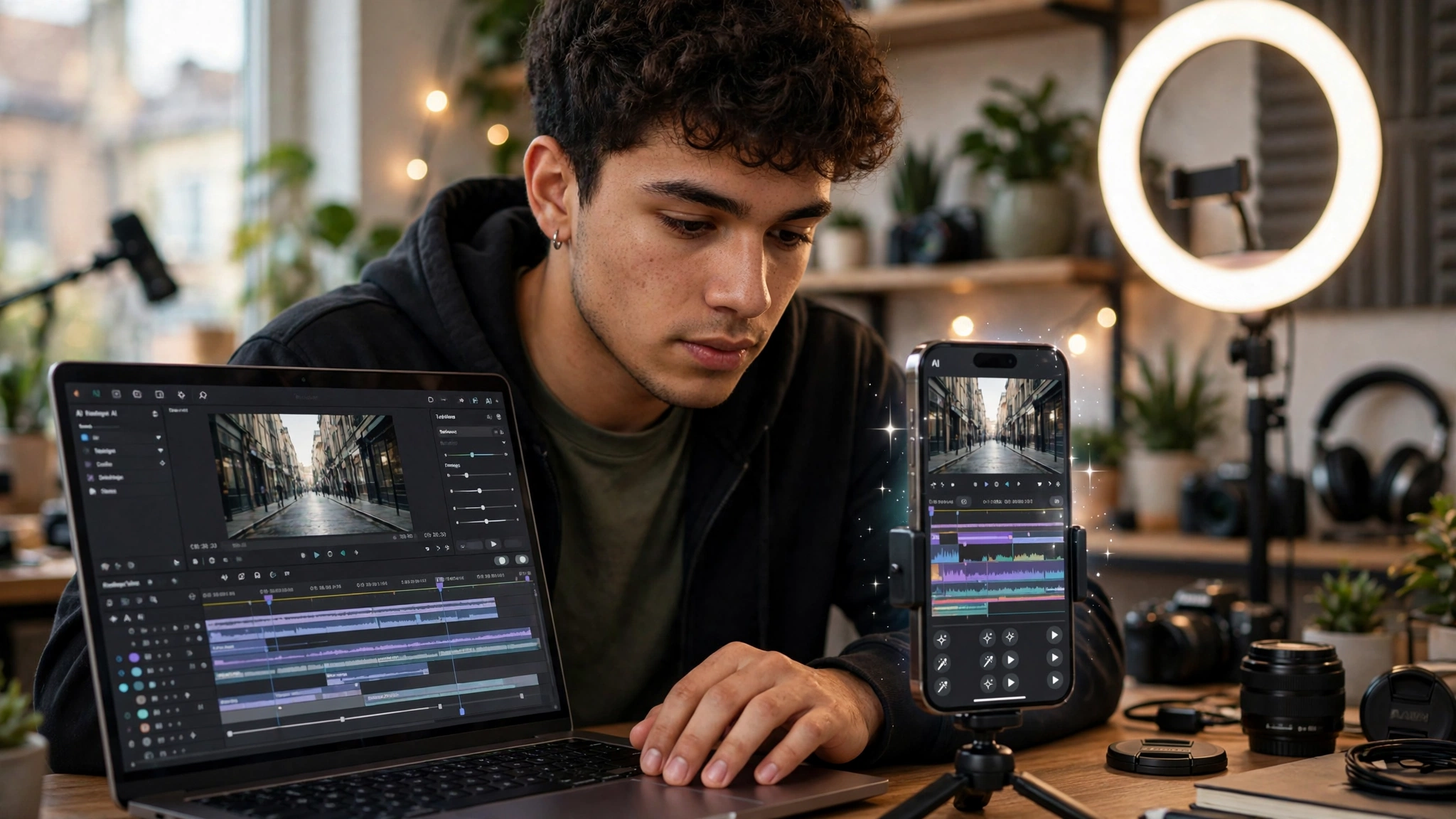
AI video editing apps have quietly become the most important tool in a TikToker’s pocket. A few years ago, making a polished short video meant hours of trimming clips, typing captions by hand, and hunting for the right sound. Today, a good AI video editor can cut silences, write captions, reframe footage to vertical, and suggest trending templates in the time it takes to make coffee.
That shift matters because TikTok moves fast. Trends can peak and fade within days, and creators who post consistently tend to grow faster than those who post a perfect video once a month. The right TikTok video editing app helps you keep that pace without burning out.
The catch is that there are now dozens of options, and they are not all built for the same job. Some are full mobile editors with AI features layered on top. Others are AI clipping tools that turn a long podcast into ten short clips. A few focus on captions, avatars, or script-to-video generation.
We looked at what the top-ranking guides recommend, tested the claims against what each app actually offers, and narrowed it down to 15 strong choices. For each one, you will find what it does best, who it suits, and where it falls short. Whether you are a beginner filming on your phone or a creator running a small content business, this list of the best AI video editing apps for TikTokers should help you pick the right fit.
Why AI Video Editing Apps Matter for TikTok Creators
The short answer is speed. Short-form video rewards volume and timing, and AI video editing apps remove the slowest parts of the process. Tasks that used to eat an afternoon now happen in a few taps.
The jobs AI handles best
Most modern editors use AI for a handful of repetitive jobs. These are the features that save the most time for TikTokers:
- Auto captions: The app listens to your audio and writes on-screen subtitles. Since a large share of viewers scroll with the sound off, captions often decide whether someone keeps watching.
- Silence and filler removal: AI detects pauses, “ums,” and dead air, then cuts them out. This keeps your pacing tight, which matters a lot in the first three seconds.
- Auto reframing: Footage shot horizontally gets cropped to a 9:16 vertical frame while keeping the subject in view.
- Background removal: You can swap or blur backgrounds without a green screen.
- AI clipping: Long videos, like podcasts or livestreams, get scanned for the most engaging moments and turned into separate clips.
- Text-to-video and AI avatars: Some tools build a full video from a script or prompt, which is useful for faceless accounts.
What to look for before you download
Not every TikTok editing app fits every creator. Before committing, check these points:
- Watermark policy: Some free plans stamp your exports with a logo. That can look unprofessional and may hurt reach.
- Export quality: Look for 1080p at minimum. 4K is nice but rarely necessary for TikTok.
- Caption accuracy and styling: Test it with your own accent and speaking speed. Animated, word-by-word captions are now the standard look.
- Mobile vs. desktop: If you film and post from your phone, a strong mobile app beats a powerful desktop tool you never open.
- Pricing model: Monthly subscriptions add up. Check what the free tier really includes.
If you want to understand what TikTok itself recommends for video length, format, and best practices, the TikTok Creator Academy is a useful official resource to keep bookmarked.
Top 15 AI Video Editing Apps for TikTokers
The list below mixes full editors, AI clipping tools, and caption specialists, so you can match the tool to your workflow. Each entry covers the standout AI features and who will get the most out of it.


1. CapCut
CapCut is the default choice for many TikTokers, and for good reason. It comes from ByteDance, the same company behind TikTok, so its templates, effects, and export settings are built around the platform. Its AI auto captions are fast and accurate, and the template library tracks trends closely.
- AI captions, background removal, and auto reframe
- Huge library of trending templates and effects
- Direct posting to TikTok
- Some advanced features sit behind a Pro plan
Best for: Beginners and trend-focused creators who want everything in one place.
2. Filmora (Desktop and Mobile)
Wondershare Filmora sits between beginner apps and pro software. It offers AI tools like text-to-video, smart cutout, AI music, and silence detection, plus a proper timeline. The desktop version is strong for longer projects you plan to slice into TikToks.
- AI text-to-video and AI copywriting
- Silence detection and auto beat sync
- Works on Windows, Mac, iOS, and Android
- Free version adds a watermark
Best for: Creators who want more control than CapCut without a steep learning curve.
3. PowerDirector
CyberLink’s PowerDirector is one of the more complete mobile editors. Its AI tools include body effects, sky replacement, background removal, and motion tracking. The free version can export without a watermark, which is a big plus.
- Full multi-track timeline on mobile
- AI background removal and object tracking
- Strong stabilization for handheld footage
Best for: Mobile creators who want desktop-style features on their phone.
4. VN Video Editor
VN Video Editor is a favorite free option because it gives you a clean multi-layer timeline, keyframes, and speed curves with no watermark. Its AI features are lighter than CapCut’s, but its manual control is excellent.
- No watermark on free exports
- Keyframes, curves, and multi-track editing
- Simple auto-caption support
Best for: Creators who like hands-on editing and want a capable free tool.
5. InShot
InShot is simple, quick, and popular for good reason. It handles trimming, music, text, and transitions well, and it has added AI features like auto captions and smart cutout over time.
- Very easy interface for fast edits
- AI captions and background removal
- Watermark on the free plan (removable by watching an ad or upgrading)
Best for: Casual creators and anyone posting quick daily updates.
6. KineMaster
KineMaster has been around for years and remains a solid mobile editor. Its AI additions include background removal, noise reduction, and an AI upscaler for low-quality footage. Chroma key support also makes it handy for green screen effects.
- Multi-layer editing with chroma key
- AI noise reduction and upscaling
- Large asset store of effects and music
Best for: Creators who do layered edits and green screen content.
7. Splice
Splice focuses on speed and simplicity on iPhone and Android. It handles music syncing, transitions, and text cleanly, with AI-assisted features that keep editing quick. Many creators like that it gets them from footage to finished post with minimal friction.
- Clean, fast mobile interface
- Music library with auto sync
- Subscription required for most features
Best for: Mobile-first creators who value a tidy, quick workflow.
8. Adobe Premiere (Mobile)
Adobe’s Premiere mobile app brings parts of its professional editing workflow to the phone, with Adobe’s AI features like generative sound effects and smart audio tools. It connects well with Adobe’s wider ecosystem, including Firefly and Express.
- Pro-grade timeline on mobile
- AI audio enhancement and generative tools
- Integration with Adobe Creative Cloud
Best for: Creators already using Adobe tools who want consistency across devices.
9. Canva
Canva is best known for graphics, but its video editor is useful for TikTokers, especially brands. Magic Studio tools can resize, remove backgrounds, and generate text or visuals with AI. Brand kits keep fonts and colors consistent across every post.
- Thousands of vertical video templates
- AI design and background removal
- Team collaboration and brand kits
Best for: Small businesses and brand accounts that need a consistent look.
10. OpusClip
OpusClip is an AI clipping tool rather than a traditional editor. You upload a long video, and it finds the strongest moments, reframes them to vertical, adds animated captions, and gives each clip a “virality” score.
- Turns one long video into many short clips
- Auto captions, emojis, and B-roll suggestions
- Direct scheduling to social platforms
Best for: Podcasters, streamers, and educators repurposing long content.
11. Descript
Descript lets you edit video by editing the transcript. Delete a sentence in the text, and it disappears from the video. Its AI tools include filler-word removal, Studio Sound for cleaner audio, and an eye-contact correction feature.
- Text-based video editing
- One-click filler word and silence removal
- Studio-quality audio cleanup
Best for: Talking-head creators, educators, and anyone who records voice-heavy content.
12. VEED
VEED is a browser-based editor known for strong subtitles. It also offers AI avatars, eye contact correction, background noise removal, and translation into many languages, which helps creators reach audiences beyond their home country.
- Works in any browser, no install
- Accurate subtitles and translation
- AI avatars and clean audio tools
Best for: Creators who edit on a laptop and want multilingual captions.
13. InVideo AI
InVideo AI focuses on text-to-video. You type a prompt or script, and it builds a full video with stock footage, voiceover, music, and captions. You can then refine it by giving plain-language instructions.
- Prompt-to-video generation
- AI voiceovers in many languages
- Large stock media library
Best for: Faceless channels and creators who want to produce explainers quickly.
14. Submagic
Submagic does one thing very well: animated captions. It adds the bold, word-by-word captions with emojis and highlights that dominate TikTok, plus auto zooms, B-roll, and sound effects to keep viewers engaged.
- Trendy caption styles in many languages
- Auto zoom and B-roll insertion
- Fast turnaround for talking videos
Best for: Creators who mostly speak to camera and want high-retention captions.
15. Zoomerang
Zoomerang is built around trends. It offers guided templates that show you exactly how to film each shot, then applies effects and transitions with AI. It is a fun option for creators who want to jump on viral formats quickly.
- Step-by-step trend templates
- AI effects and auto edits
- Simple, playful interface
Best for: Younger creators and anyone focused on trends and challenges.
How to Choose the Right AI Video Editing App
There is no single winner among AI video editing apps. The best pick depends on how you create, where you edit, and how much you want AI to do for you.
Quick comparison by creator type
| Creator type | Best picks | Why |
|---|---|---|
| Beginners and trend chasers | CapCut, InShot, Zoomerang | Templates and one-tap AI features |
| Hands-on mobile editors | VN, PowerDirector, KineMaster | Multi-track timelines and keyframes |
| Podcasters and streamers | OpusClip, Descript | AI clipping and transcript editing |
| Talking-head creators | Submagic, Descript, VEED | Captions and audio cleanup |
| Brands and small businesses | Canva, Filmora, Adobe Premiere | Brand kits and polished output |
| Faceless accounts | InVideo AI, CapCut | Script-to-video and AI voiceovers |
Combine tools for a faster workflow
Many successful TikTokers do not rely on one TikTok video editor. A common setup looks like this:
- Record a long video, such as a podcast episode or tutorial.
- Use an AI clipping tool like OpusClip to pull out the best moments.
- Polish each clip in CapCut or VN, adding sounds and effects.
- Run the final cut through Submagic or CapCut for animated captions.
- Post or schedule directly from the app.
This approach lets AI handle the heavy lifting while you keep creative control over the final look.
Tips to get better results from AI editing
- Review every caption. AI transcription is good but not perfect, especially with names, slang, or strong accents.
- Do not over-edit. Too many effects can feel cluttered. Clean, readable videos usually hold attention better.
- Hook in the first two seconds. Use AI to trim your opening so the main point lands right away.
- Use licensed music. Some apps offer sounds that are not cleared for commercial use, which matters for brand accounts.
- Watch your data. Read the privacy terms, especially for apps that upload your footage to the cloud for AI processing.
Why AI editing keeps growing
Short-form video now plays a major role in how people, especially younger adults, find news and entertainment. Research from Pew Research Center has tracked the steady rise of TikTok as a source of information for Americans, which helps explain why creators and brands are investing more time in quality short videos. As competition grows, AI-powered video editing is becoming less of a bonus and more of a basic requirement for staying consistent.
Conclusion: Picking the Best AI Video Editing Apps for Your TikTok Goals
The right AI video editing apps can turn TikTok from a time sink into a steady, manageable routine. CapCut remains the easiest all-round choice, VN and PowerDirector reward creators who like manual control, and tools like OpusClip, Descript, and Submagic shine when you need to repurpose long videos or add high-retention captions. Brands will feel at home in Canva or Filmora, while faceless creators can lean on InVideo AI to build videos from a script. Start with one free option that fits how you already work, test it for a couple of weeks, and add a second specialist tool only when you hit a clear bottleneck, because the goal is not to use the most AI, it is to post better videos more consistently.